LLM System Prompt Tuning Workflow
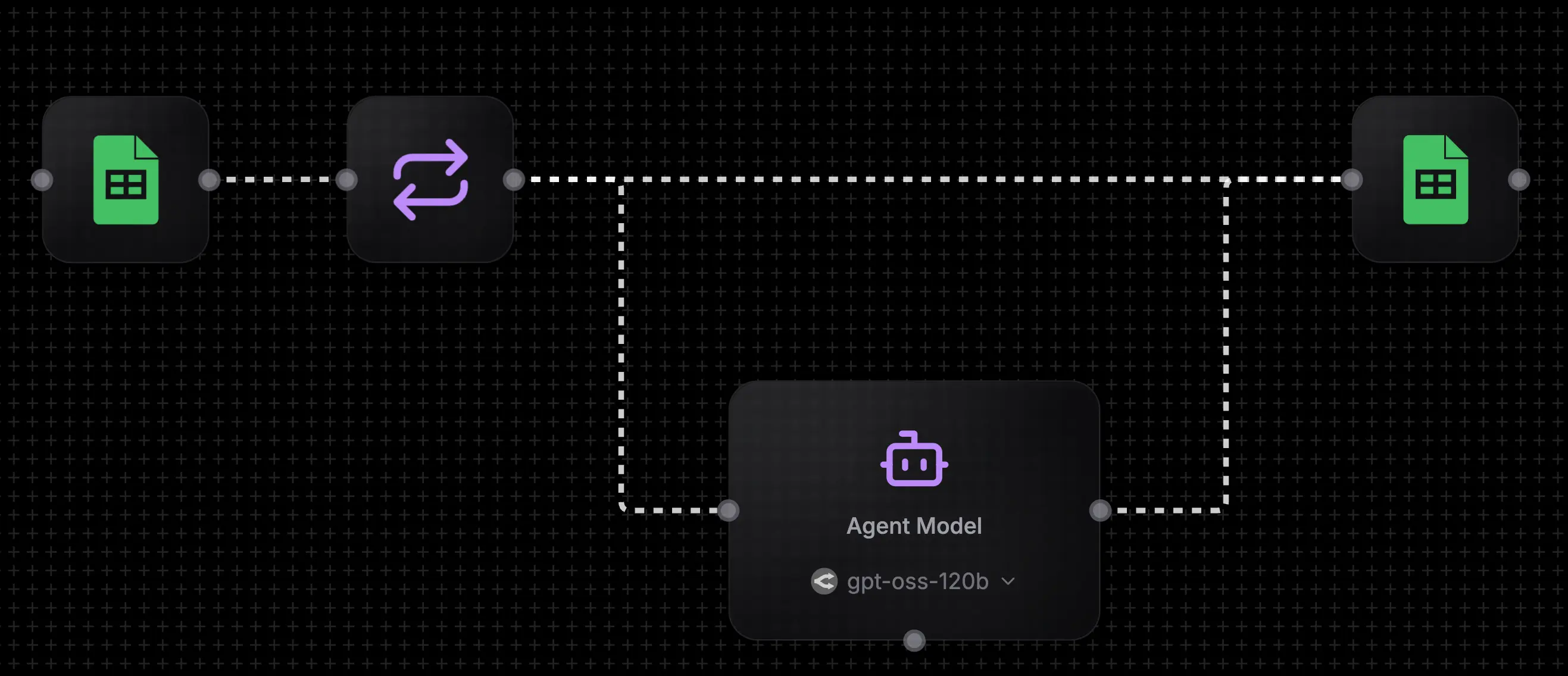
A well-tuned system prompt can be the difference between an LLM that gives generic responses and one that nails your use case. But finding the right prompt takes iteration—testing different instructions against real inputs and comparing outputs. Without tooling, this means manually copy-pasting into a chat interface over and over.
This workflow handles that for you. Put your prompts and test cases in a Google Sheet, run the workflow, and get all responses written back automatically. All you need is a Google Sheet and a NoClick account.
1. Import the Workflow
Click the Copy Workflow button on the image above, then paste it into a new workflow in your NoClick account.
2. Set Up Your Google Sheet
Create a Google Sheet with these columns:
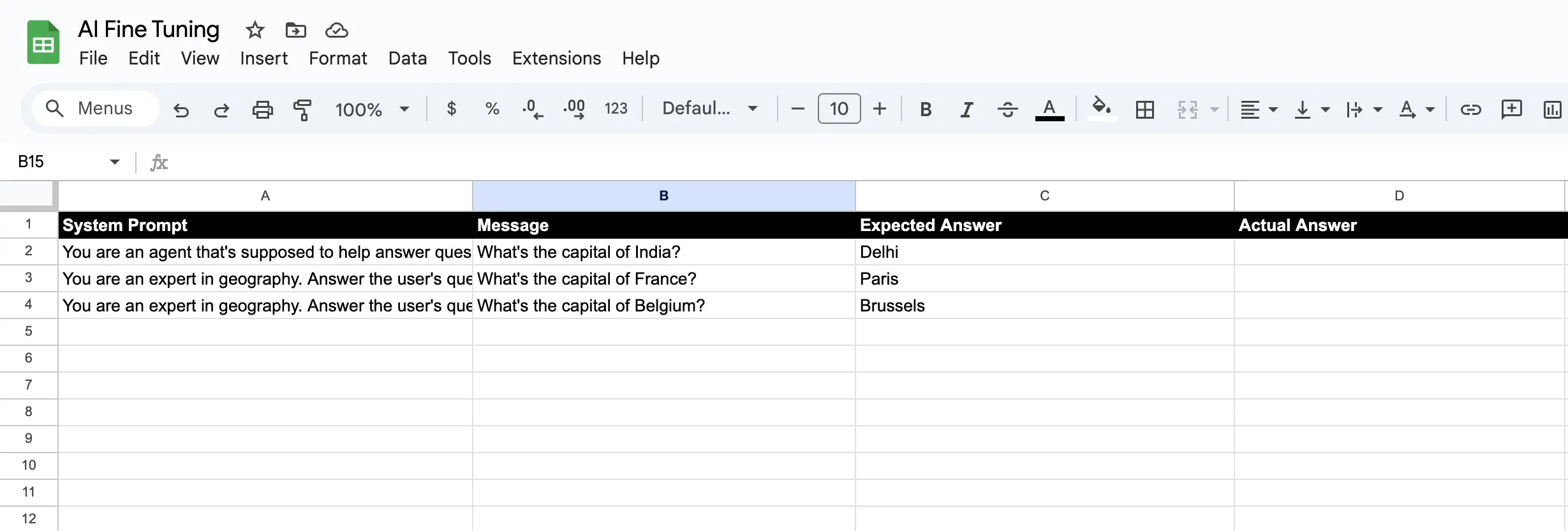
- System Prompt – your instructions for the LLM
- Message – the test input
- Expected Answer – what you're hoping to get
- Actual Answer – where results get written (leave blank)
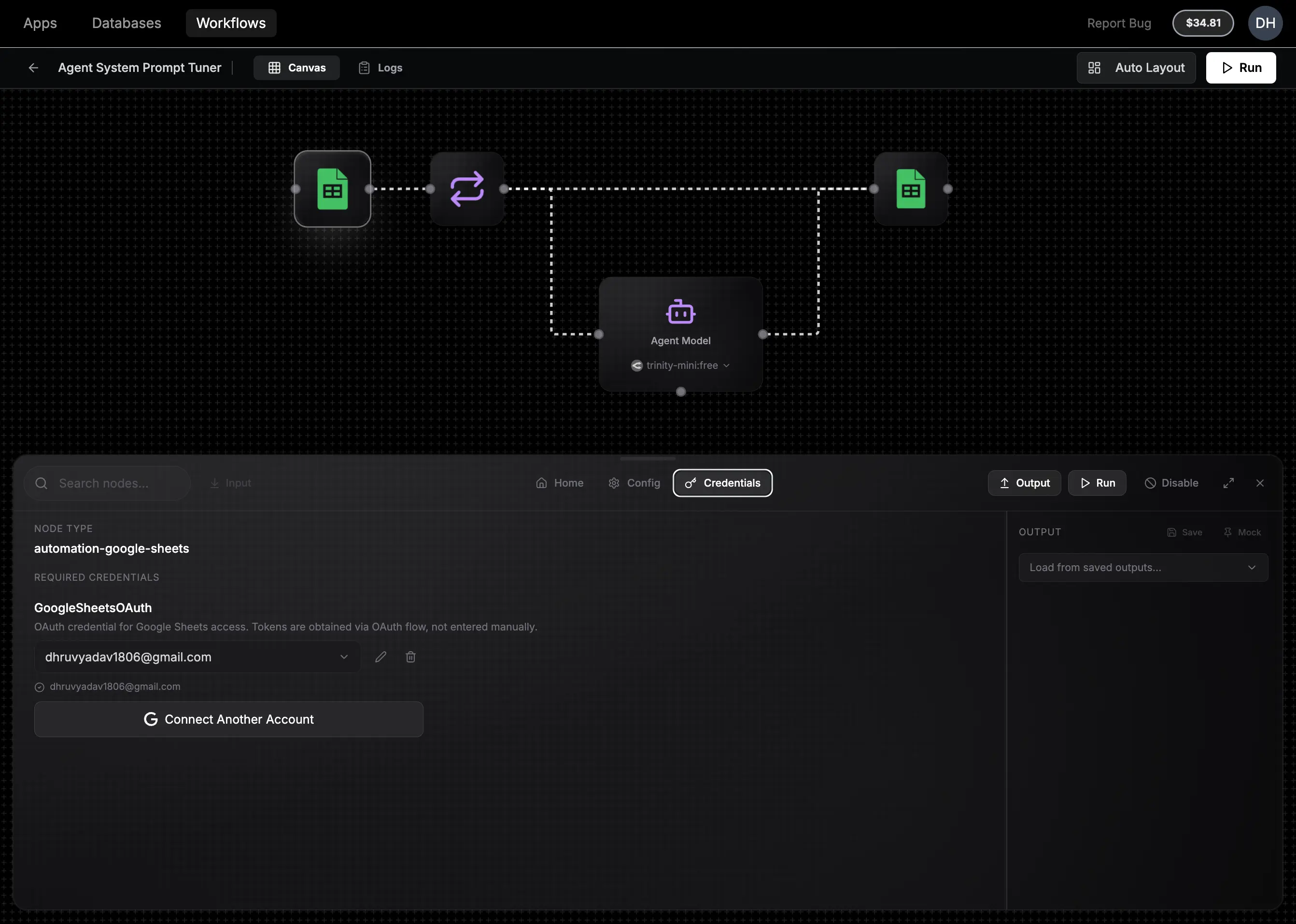
3. Connect Your Google Account
In the Google Sheets node, hit Connect Google Account to give NoClick access. A new tab will open where you will have to authorize NoClick (we need these permissions to be able to run the workflow).
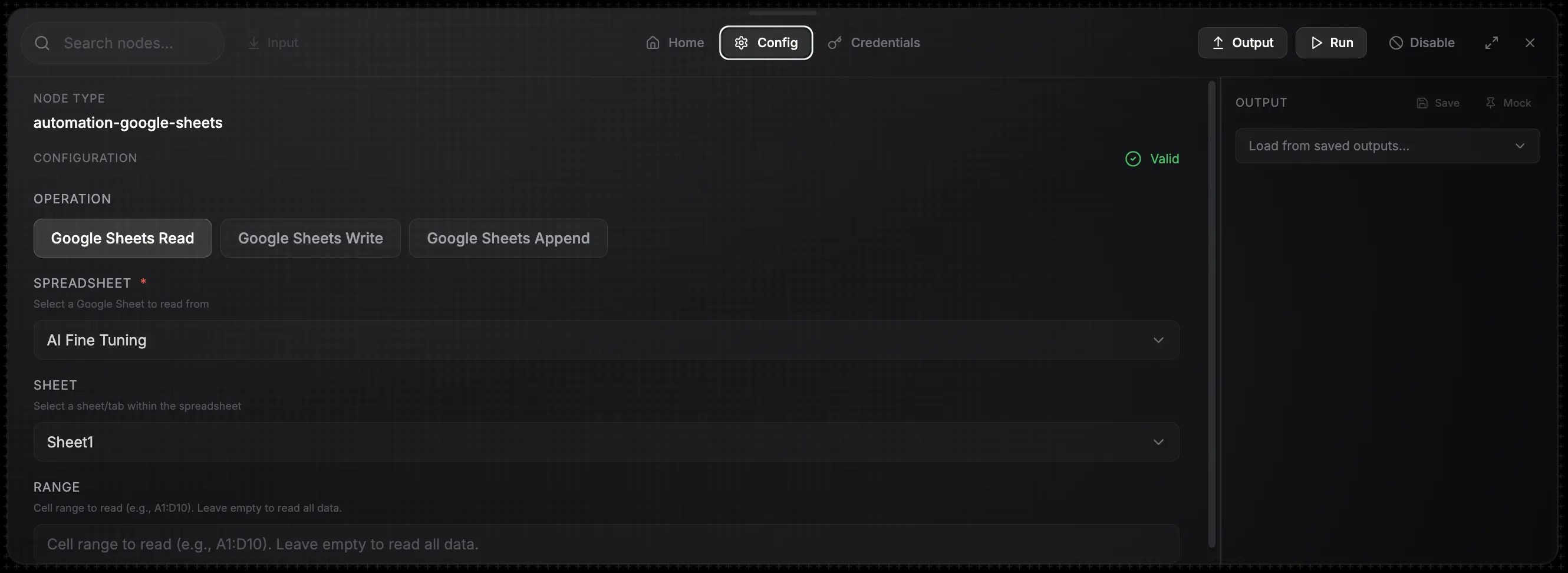
4. Select Your Google Sheet
Select your spreadsheet from the dropdown in node configuration for the two Google Sheet nodes in the imported workflow. To open node configuration, simply click on the sheet node you want to configure.
5. Run the Workflow
Hit Run on the top right. The workflow will loop through each row, send your message with the system prompt to the LLM, and writes the response back to your google sheet.
6. Check Results
Head back to your sheet—the Actual Answer column now has all your outputs.
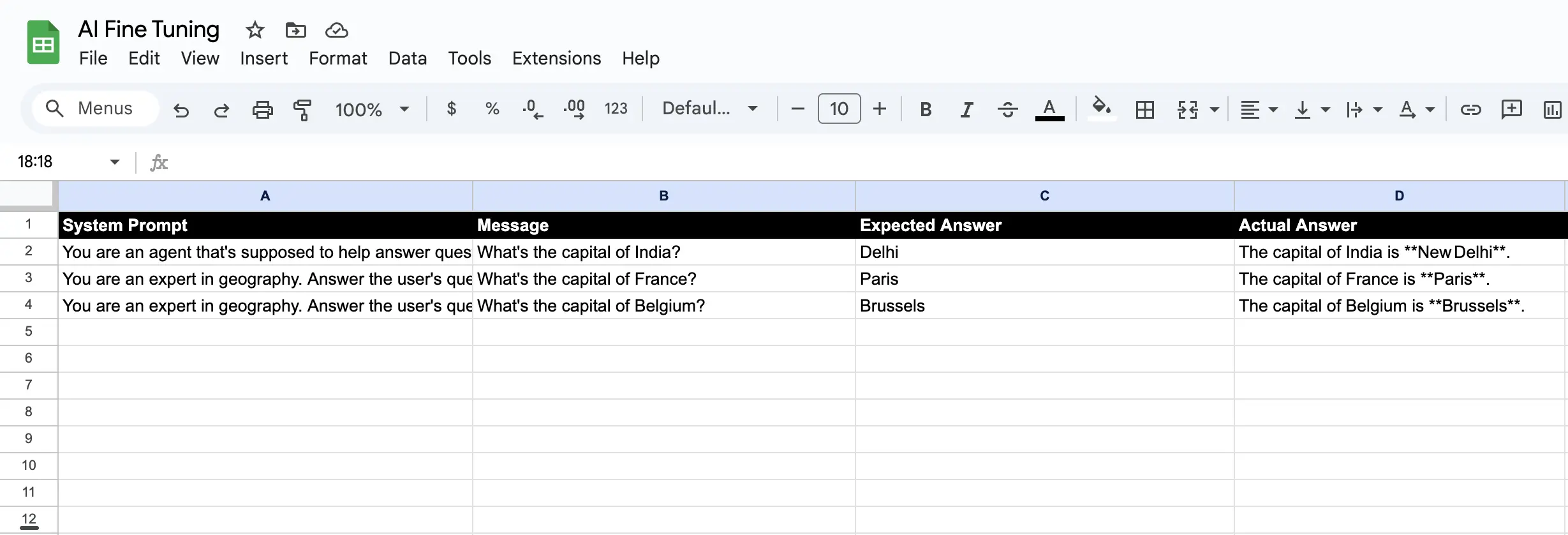
Compare against your expected answers, tweak your prompts, and run again. No more manual testing!
Ready to Build Your Own Workflow?
Start automating your LLM testing and prompt engineering with NoClick today.